Connexx Rexton Reach - increase volume for phone calls? ::SOLUTION::

cybermage

New Member
Joined
Mar 23, 2025
Messages
20
Reaction score
8
Can someone please point me in the right direction with the Connexx software to, without touching my normal settings, increase the volume for streaming audio, particularly phone calls, over Bluetooth LE?

My fitter already set the mic volume at 55% when streaming, and that helps but even if that went lower, when I'm in any sort of a noisy environment, even walking in a Costco for instance, phone calls with Bluetooth vol at max on the phone are still difficult at times. Using the volume buttons on the HA don't affect the streaming volume.

The only settings I've seen that impact streaming audio are the EQ settings for it and the reduction in the HA microphone input. My hearing isn't so bad that reducing the mic input to zero would improve this where I need it - it's just not very loud when streaming.
 
I don't have any Rexton hearing aids? Is this close to what you are looking for?

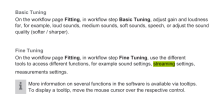
Maybe, try accessing the Electronic User Guide from inside Connexx 9.13;
  • Click Help and select Electronic User Guide
  • Scroll down to find Fine Tuning on Page 14 (see example below)
c1.png
 
Can someone please point me in the right direction with the Connexx software to, without touching my normal settings, increase the volume for streaming audio, particularly phone calls, over Bluetooth LE?

My fitter already set the mic volume at 55% when streaming, and that helps but even if that went lower, when I'm in any sort of a noisy environment, even walking in a Costco for instance, phone calls with Bluetooth vol at max on the phone are still difficult at times. Using the volume buttons on the HA don't affect the streaming volume.

The only settings I've seen that impact streaming audio are the EQ settings for it and the reduction in the HA microphone input. My hearing isn't so bad that reducing the mic input to zero would improve this where I need it - it's just not very loud when streaming.
I recently got a Rexton Reach, and I detest its streaming feature. WIth Phonak's HA, this is something extremely simple to do.
Short answer: NO

Long answer: While you are streaming, open the app and use the Rexton Assistant. There is an option that says "sounds are too soft," and the assistant will attempt to increase the volume. Sadly, I found this useless. Using the Rextons outdoors for a phone call is practically impossible for me.

PVCs answer, unfortunately, does not apply. There is no volume knob for streaming in the Connexx software, only for the programs. It is not available in the automatic tuning features either.

I like everything about the Rexton EXCEPT what you described. I've spent hours trying to fix this, and I spoke to the tech @ Costco, who said it is a common complaint. I'm seriously considering returning them: the streaming functions are only usable in VERY quiet environments for me.

I just don't understand why WS audiology did this -- Phonak has a volume slider in the app and it is extremely easy to adjust in Phonak Target
 
Long answer: While you are streaming, open the app and use the Rexton Assistant. There is an option that says "sounds are too soft," and the assistant will attempt to increase the volume. Sadly, I found this useless. Using the Rextons outdoors for a phone call is practically impossible for me.
 
I got it figured out. It's not in the app, only in the fitting software.

On the Fine Tuning as PVC mentioned are the options for streaming, but they are only displayed as an EQ type setting, not a volume control. The real trick though is that streaming and "headset mode" i.e. phone are two separate tabs with individual EQ options. My fitter had turned DOWN the phone / headset mode EQ options considerably compared to audio streaming. As in, they were around -4, where streaming was set in the +4 I increased the voice range portion of the EQ for headset mode and my phone calls are now at a good volume.
 
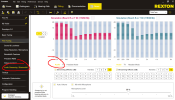
First shot, streaming mode is the default tab. "Audio" is selected. Easy to miss.


streaming.png

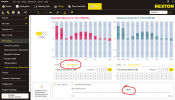
Click on "Headset Mode" to impact phone calls. You can even adjust the mic mixing level separately for it versus audio streaming.

headsetmode.png

I watched my fitter when I first complained phone calls were quiet and he ONLY did tweaks to the Audio tab which doesn't appear to impact phone calls at all. I would say it's a training issue at Costco.

Honestly it's a super-powerful platform, I just wish half these options were in the app and not locked behind the fitting software.
 
Last edited:
Thank you for this contribution! A couple of observations below;
  • It is difficult to offer advice about how to adjust streaming volume for multiple devices (TV, Phone, Remote Mics) and especially difficult without having that particular (brand-and-model hearing aid) to review the results.
  • Your audiologist (does not and cannot) adjust the streaming settings for you. That's because He/She cannot listen to the results, therefore DIY adjustments are somewhat required for fine-tuning your streaming.
wish half these options were in the app and not locked behind the fitting software
It's not currently possible. The (hearing aids + hearing aid programming device + hearing aid fitting software) is a very complex combination of (hardware, software, and even firmware) and beyond the capability of the App. This applies to all brands of hearing aids.

Question: How do you select all frequencies (and for both ears) to adjust them all-at-once instead of adjusting them one-at-a-time.
 
Question: How do you select all frequencies (and for both ears) to adjust them all-at-once instead of adjusting them one-at-a-time.
You'll note on my screenshot that both ears are synced together (coupled option). I suppose you could set handles to 1 and then just go up or down, but it was defaulted to 12 for me and I want more fine grain control for streaming. I'm still tweaking it a bit for my audiobook clarity.

I'm not sure if the offset qty is affected separately for each tab or not, I didn't try. I actually think I remember my first fitter setting it to the 12 offsets from the original 6 and I don't think he changed it on each tab.
 
Your audiologist (does not and cannot) adjust the streaming settings for you. That's because He/She cannot listen to the results, therefore DIY adjustments are somewhat required for fine-tuning your streaming.
True, and to make it even worse you can't test it while connected to the Noahlink. You have to save and close out and in some cases reboot the HA again to test the changes you made. It's very tedious and I bet most Costco fitters don't have the patience to change, wait for you to test, then change some more.
 
Another thing I'll add to DIY Rexton fitting. The Reach are definitely capable of tinnitus masking, despite what Costco will tell you. My fitter said that their models didn't support it. He was very wrong.
 
And PVC regarding your statement:
Volume control is discussed near the beginning of Brian's video.
The volume control in the app is completely incapable of impacting streaming or phone calls. It only affects volume related to the HA microphones on the Reach. I specifically tested that. Changing the volume while streaming would change the outside world volume but didn't impact the streaming volume at all.

I find it interesting that they refer to volume settings for the HA mics, but streaming / BLE gets an EQ. I believe that's because they expect the phone to provide the volume options over bluetooth, just like with any bluetooth headset. Unfortunately if set wrong in the fitting software your phone just can't compensate at max volume, even with the Android volume safety limits disabled. It will also get distorted.
 
The Reach are definitely capable of tinnitus masking, despite what Costco will tell you. My fitter said that their models didn't support it. He was very wrong.
What your Costco fitter meant to say (or should have said) it that;
As always, Costco hearing aids are minus the Tinnitus feature, or if they do have it the Costco fitters will not turn it on, and they discourage discussion too.

I still don't visualize what you click/drag to adjust all frequencies? BBL
 
What your Costco fitter meant to say (or should have said) it that;
As always, Costco hearing aids are minus the Tinnitus feature, or if they do have it the Costco fitters will not turn it on, and they discourage discussion too.

Their software doesn't even have the option for it, they run a custom build of Connexx apparently. I watched him and noticed it was missing.

I still don't visualize what you click/drag to adjust all frequencies? BBL
1746642872308.png
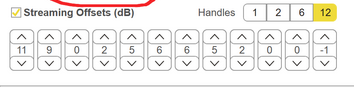
These up/down arrows for the various frequencies.
 
Yes, that is what I was having problems with. What happens it you (click the Up Arrow on the -1) versus (clicking the Up on the 11). I don't have this in front of my eyes to test. Does (clicking the Up arrow on 11) raise volume for all 12 frequencies?
 
Maybe in order to adjust all 12 frequencies at the same time, you will have to;
  1. Choose 1-Handle from the choices to display (1, 2, 6,12) handles
  2. Then click the Up-or-Down arrow on the one gain handle that is displayed
Though, it is not obvious to me that this is the method to be used as a simple volume up/volume down?
 
I got it figured out. It's not in the app, only in the fitting software.

On the Fine Tuning as PVC mentioned are the options for streaming, but they are only displayed as an EQ type setting, not a volume control. The real trick though is that streaming and "headset mode" i.e. phone are two separate tabs with individual EQ options. My fitter had turned DOWN the phone / headset mode EQ options considerably compared to audio streaming. As in, they were around -4, where streaming was set in the +4 I increased the voice range portion of the EQ for headset mode and my phone calls are now at a good volume.
-- comment removed by author
 
Last edited:
I just found out that I was doing things wrong. I take back what I said. I can control the streaming volume from the iPhone as if I was controlling
First shot, streaming mode is the default tab. "Audio" is selected. Easy to miss.


View attachment 1138

Click on "Headset Mode" to impact phone calls. You can even adjust the mic mixing level separately for it versus audio streaming.

View attachment 1139

I watched my fitter when I first complained phone calls were quiet and he ONLY did tweaks to the Audio tab which doesn't appear to impact phone calls at all. I would say it's a training issue at Costco.

Honestly it's a super-powerful platform, I just wish half these options were in the app and not locked behind the fitting software.

This is what I've been playing with, and I can't get the volume significantly up without distorting the sound, and my freq < 1K are already to the max. Fully agree with you that Rexton should have included more features in the app.
 
Yes, that is what I was having problems with. What happens it you (click the Up Arrow on the -1) versus (clicking the Up on the 11). I don't have this in front of my eyes to test. Does (clicking the Up arrow on 11) raise volume for all 12 frequencies?
No, each one only adjusts the EQ bar directly above it if you look at the full screenshot. If you click the "handles" option to less handles, it reduces the quantity of frequency bars available in the EQ and the equivalent up/down buttons below them.

Those up/down buttons are very much like old-school equalizer settings.
 
c1.png
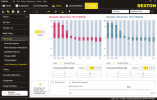
  • Under Fitting/Fine Tuning; Select (Audio Streaming / Bluetooth).
  • Mouse hover over (Auto Volume) - Auto volume improves the listening experience of the streaming signal by adjusting the loudness dependant on the environmental noise. Based on this knowledge you can decide whether or not you want to activate Auto volume.
  • Mouse hover over (Mix with Microphone) - Activates the microphone input in addition to audio streaming. Based on this knowledge you can decide whether or not you want to activate the microphone so that you can hear the person next to you in addition to hearing the streaming dialogue.
  • Mouse hover over (Streaming Offsets dB) checkbox - The Streaming Offsets lets you shape the frequency response of the streamed signal. I believe this means that there is no pure volume control. Instead, you can adjust things like (Bass, Mid range frequencies, and High frequencies).
  • For the sake of simplicity and to watch what it does, select a small number of handles (2 or 6) and then click the arrows (^/v) while watching the effects of each (^/v) arrow click.
  • Now; and if you are making for-real adjustments to your streaming (and not simulating like I was) then Save your fitting session, and then go listen to some streaming to evaluate what effect the changes made to your streaming signal.
 
Last edited:
You got it. I use the auto-volume which basically makes it boost the streaming if there's a lot of world sound around you.

As you figured - there is no actual volume control, but those streaming offsets do pretty major changes, at least for me. I no longer need my phone on full volume and still barely hear the caller. I now run my phone at around 80% volume and am comfortable in most environments after boosting the headset mode offsets for speech tones.

I still need to set aside some time to tweak the streaming settings better than they are but I did boost the voice range a bit on it as well and again was able to take my phone volume to 80% instead of 100% to hear audiobooks well.

The mixing of microphone with reduced volume is very helpful for noisy situations. The downside if you use it on the Audio mode, not just headset mode, is that every time your phone makes any sort of sound the world around you gets dim for about 3 or 4 seconds. For instance, if you have audio feedback on your keyboard, every click of a key will make sure the world around you is muted a bit. So it really depends on if you often listen to music or books and want to tune out the world, in which case you might want to set your system sounds volume slider on your phone all the way to zero.
 
Back
Top