


MTLH1212
New Member
- Joined
- Sep 4, 2023
- Messages
- 5
- Reaction score
- 2
Hi all,
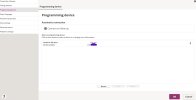
I'm running Genie 2 2025.1 on a Windows 11 PC with a Noahlink Wireless (original, not Wireless 2). As shown in the first screenshot, Noahlink is selected as the programming device in Genie's "Preferences" (settings) and I also selected automatic connection. Genie is up to date & so is the firmware on the Noahlink. I had a connection issue at first, but then it worked after I downloaded & installed the Noahlink driver and I was able to detect my hearing aids & download their settings.
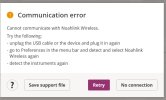
Now when I open Genie I get the communication error message in the second screenshot: Cannot communicate with Noahlink Wireless.
I've tried the suggestions in the error message (unplug/replug the usb cord, detect/select Noahlink again, detect aids again) w/o luck. I removed the "automatic connection" check in Preferences, tried to detect my aids through the client profile & got the same message. I also tried restarting Genie & restarting the computer.
The Noahlink doesn't appear to be dead; it blinks green when I plug the usb cord into the computer.
I'm kind of stuck! Has anyone else had this issue and solved it?
Thanks!
I'm running Genie 2 2025.1 on a Windows 11 PC with a Noahlink Wireless (original, not Wireless 2). As shown in the first screenshot, Noahlink is selected as the programming device in Genie's "Preferences" (settings) and I also selected automatic connection. Genie is up to date & so is the firmware on the Noahlink. I had a connection issue at first, but then it worked after I downloaded & installed the Noahlink driver and I was able to detect my hearing aids & download their settings.
Now when I open Genie I get the communication error message in the second screenshot: Cannot communicate with Noahlink Wireless.
I've tried the suggestions in the error message (unplug/replug the usb cord, detect/select Noahlink again, detect aids again) w/o luck. I removed the "automatic connection" check in Preferences, tried to detect my aids through the client profile & got the same message. I also tried restarting Genie & restarting the computer.
The Noahlink doesn't appear to be dead; it blinks green when I plug the usb cord into the computer.
I'm kind of stuck! Has anyone else had this issue and solved it?
Thanks!

